Updating the IoE Module firmware
If updating the IoE Module from firmware 1.0 or 1.1, be sure to have all SDI-12 devices connected during the update. If they are not connected, configuration data will be lost and you will have to re-add the sensors. The update requires cloud connectivity.
IoE Module firmware updates are loaded from a computer to the IoE Module using the USB port. To apply the update:
-
Download the file to your computer.
Firmware files are available from Firmware Downloads. The file name is
cwcfw_1.2.0.ioe_pkgor something similar. -
Power off the IoE Module.
Press the power button (
 ) and then select Yes to power off the device.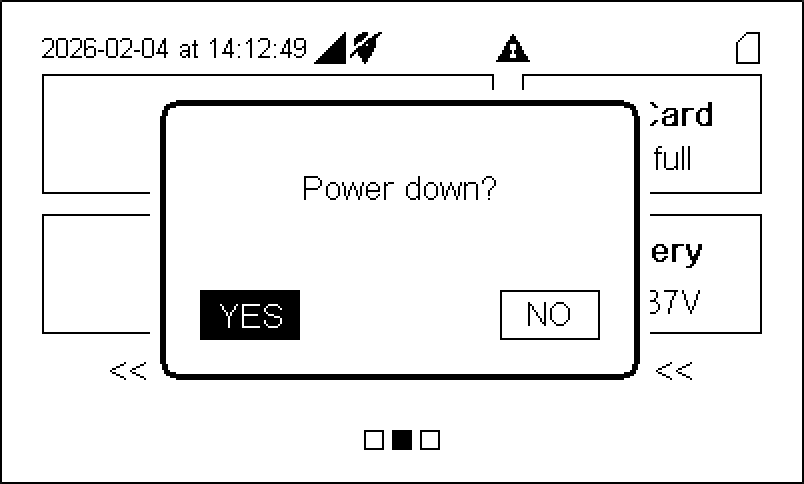
-
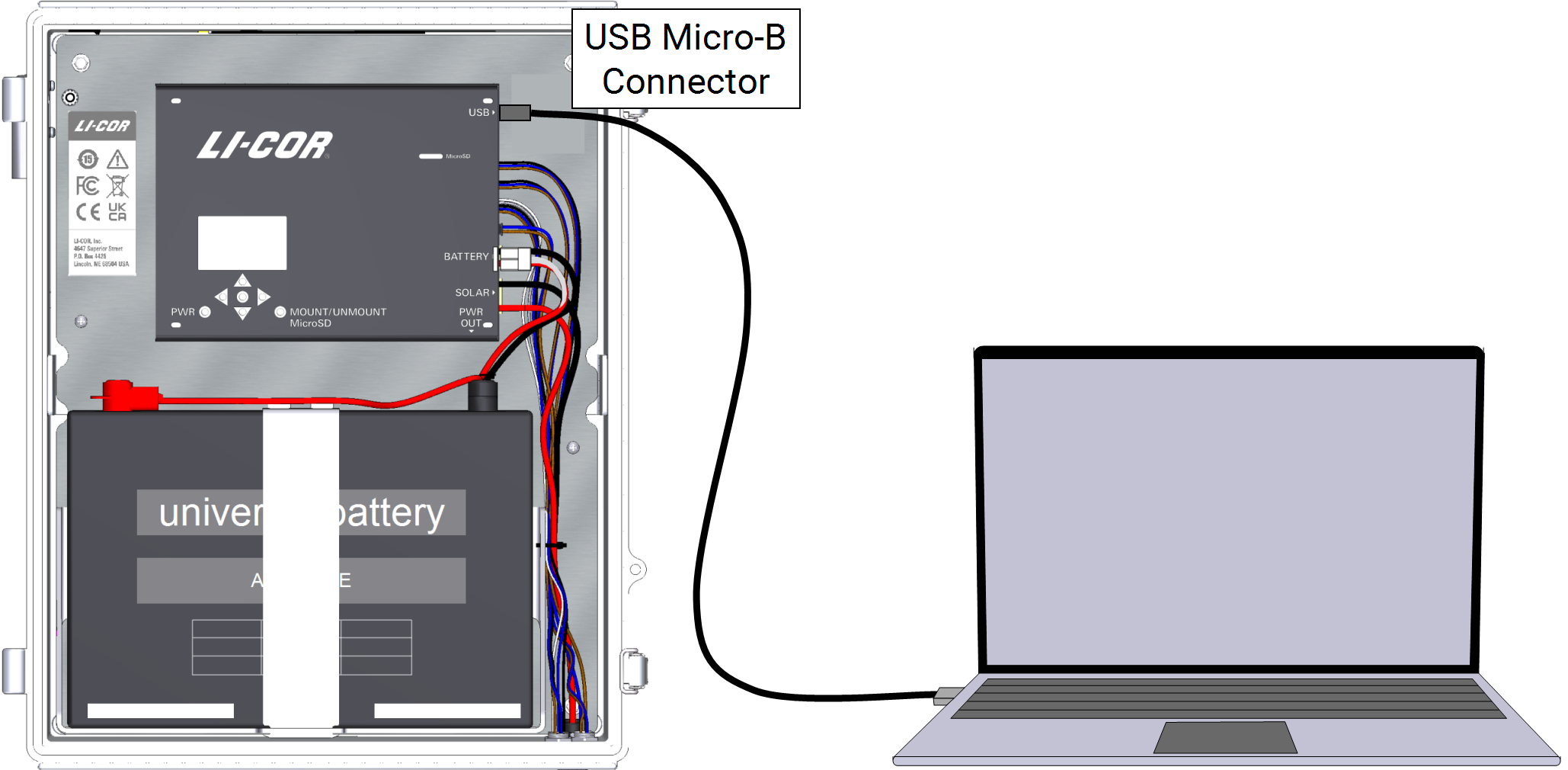
Connect a USB cable between the module and your computer.
The USB connector is labeled in the IoE Module. It accepts a USB Micro-B connector.
Caution: The Micro-B connector is fragile. Do not apply lateral force to the cable connector when inserting and removing the cable to avoid damaging the circuit board.
-
Power on the IoE Module.
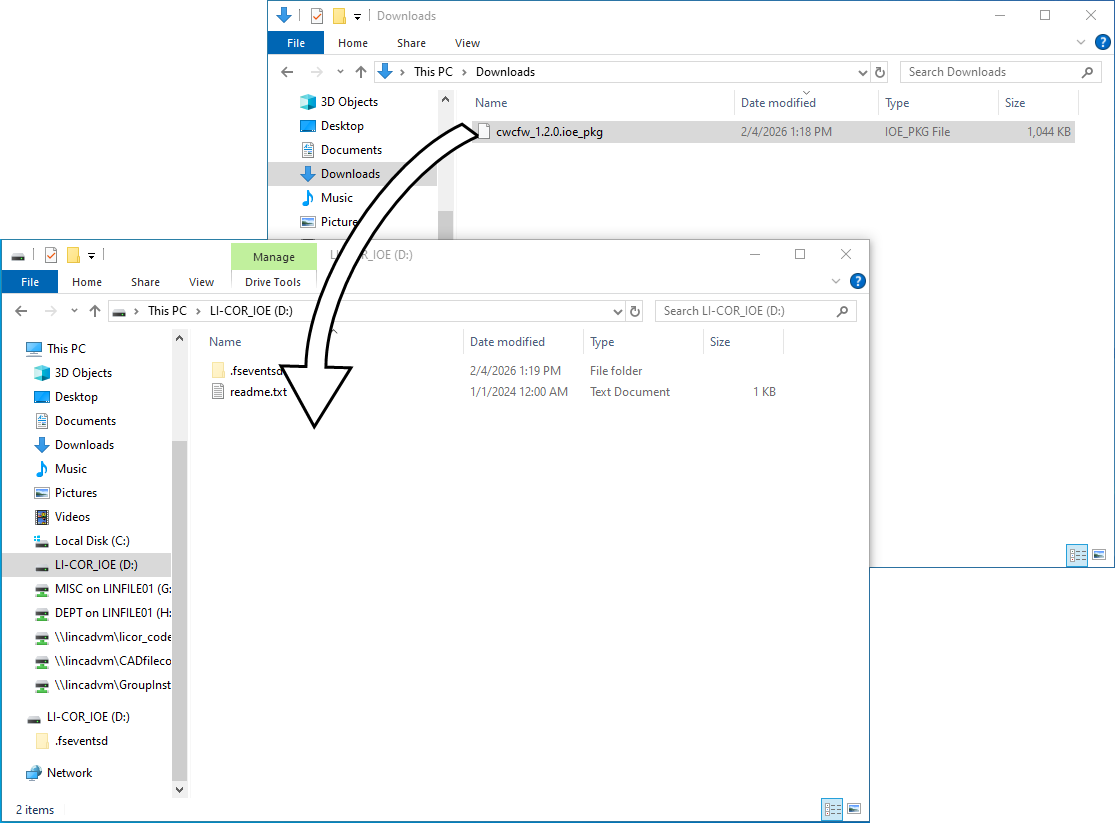
It will start in update mode and appear as a USB drive on your computer called LI-COR_IOE.

-
Drag the file or copy and paste the file to the folder.
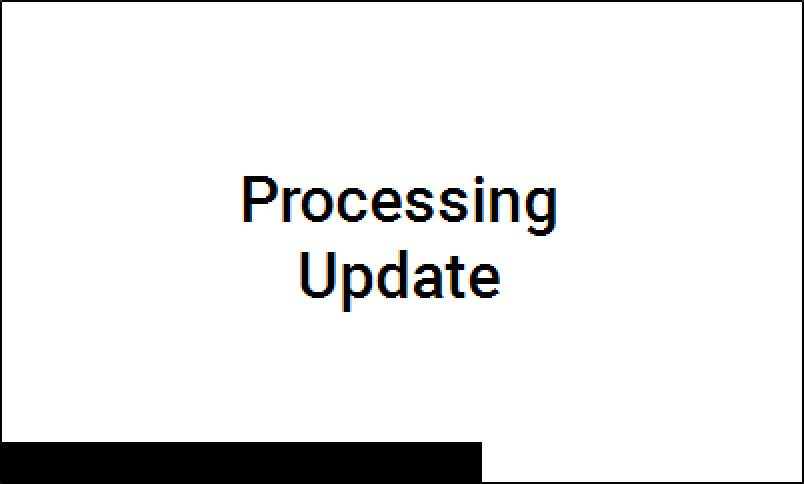
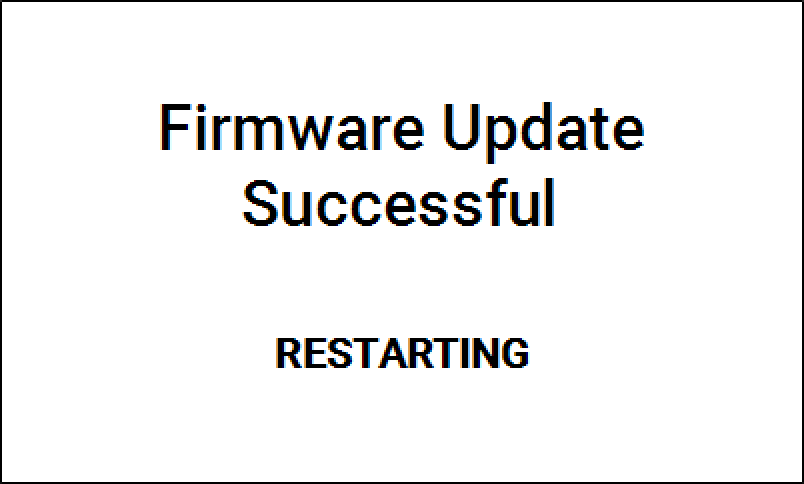
The IoE Module will apply the update. Progress is shown on the display.
-
Watch as the IoE Module restarts.
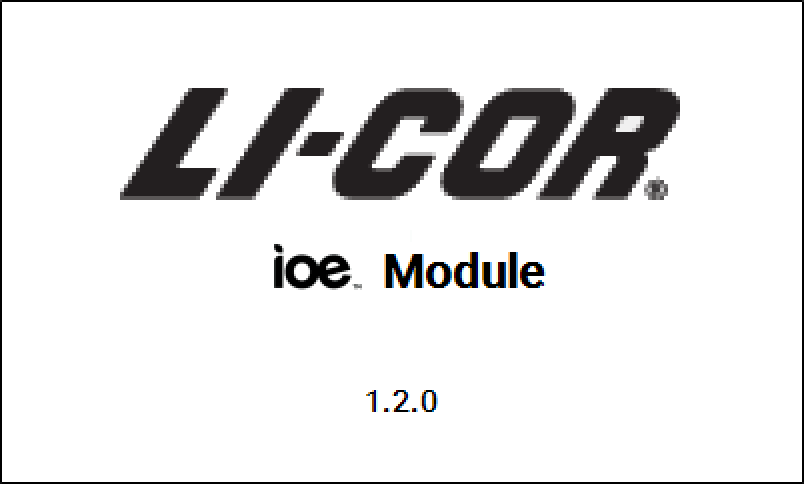
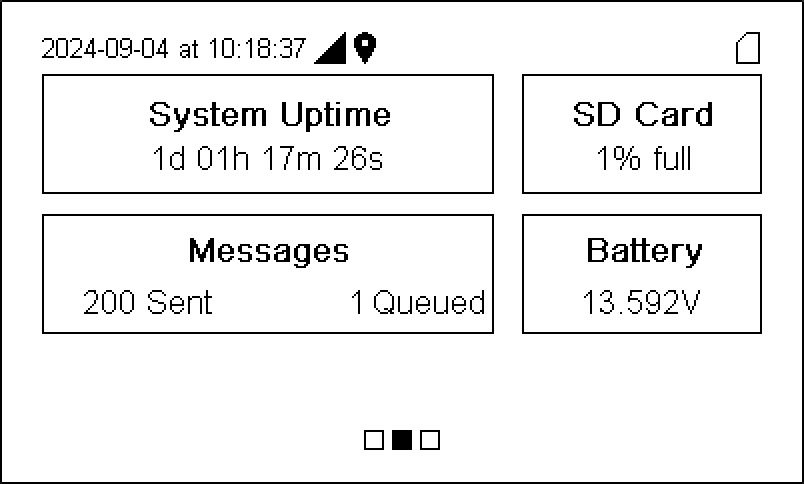
The initialization screen displays the firmware version briefly before advancing to the home screen.
-
Disconnect the USB cable.
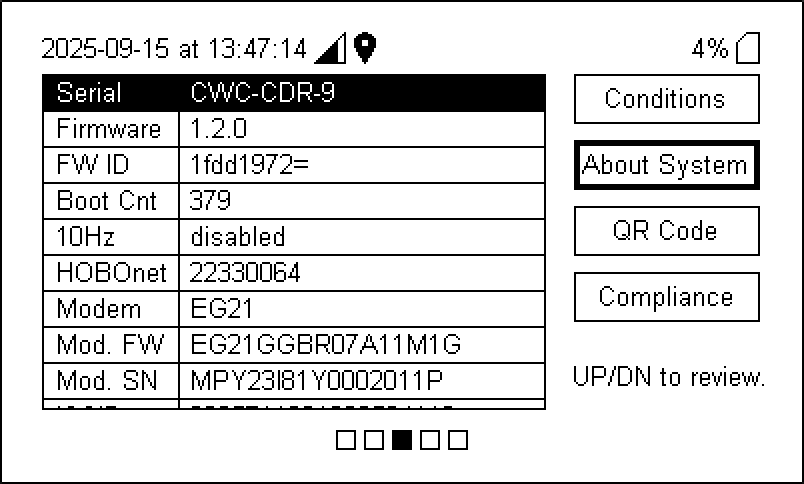
To check the version number, press left once ( ) and down once (
 ) to view About System, where the firmware version is displayed.