


What's new with win-GHG Software and the SmartFlux System?
The combined release of win-GHG interface software v9.0.0 and the SmartFlux Core System firmware v4.2.1 provide important feature updates and bug fixes. All SmartFlux 2 and 3 Systems can be upgraded to the SmartFlux Core System with this free software update. To take advantage of the new features, follow the steps in Updating to the SmartFlux Core System.
The changes are summarized below.
Bug fixes and improvements
This release includes the following bug fixes and improvements:
-
Data management improvements; SmartFlux file rotation is more robust.
-
Fixed an issue with timestamps at startup.
-
Improved Status Server performance for more robust reporting.
New features
In addition to performance improvements, the following new features are supported:
Eliminated distinction between SmartFlux 2 and SmartFlux 3 Systems
When a SmartFlux 2 System or SmartFlux 3 System is updated, the device will be called the SmartFlux Core System. SmartFlux Core Systems are compatible with LI‑7500A/RS, LI‑7200/RS, and LI-7500DS gas analyzers.
Note: Serial numbers are not changed by the update. Although the distinction between SmartFlux 2 and 3 Systems is no longer relevant with updated systems, serial numbers will remain intact. For example, a serial number smart3-0235 will not be changed by the update even though the system is now configured as a SmartFlux Core System.
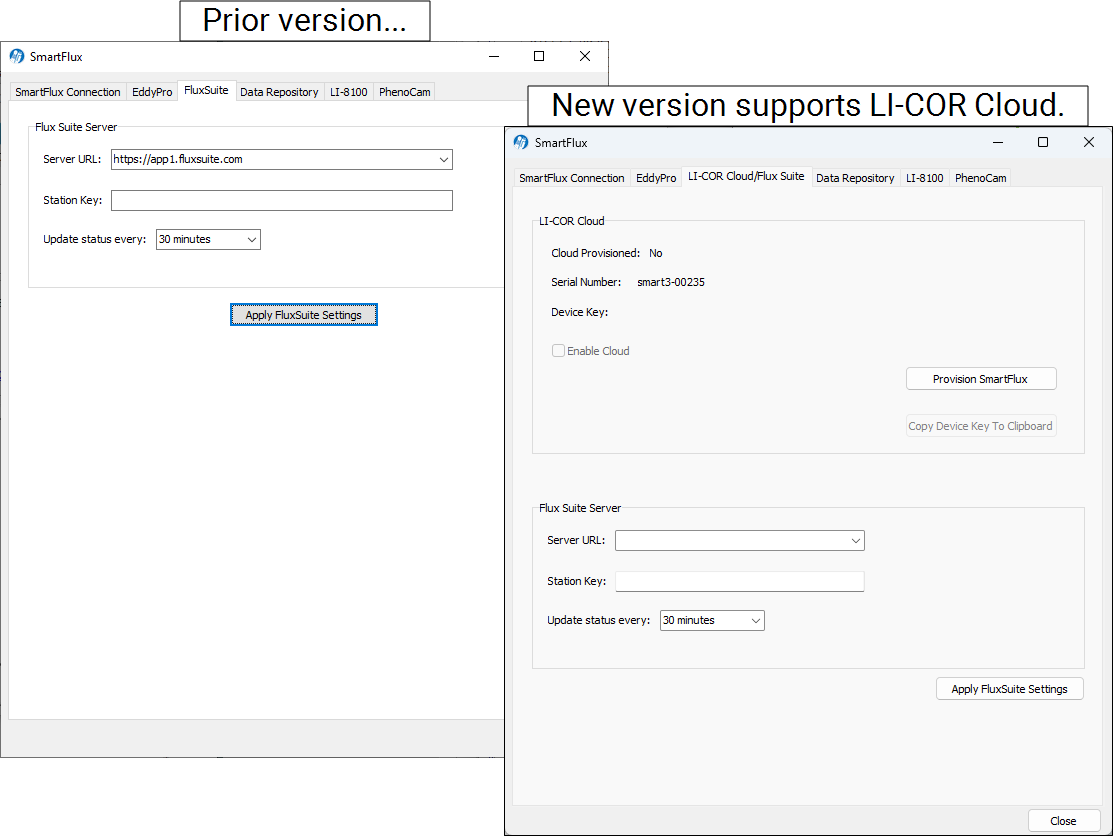
Added support for LI-COR Cloud
The win-GHG application now supports LI-COR Cloud data service and advanced data analysis features. FluxSuite is now deprecated but still supported.
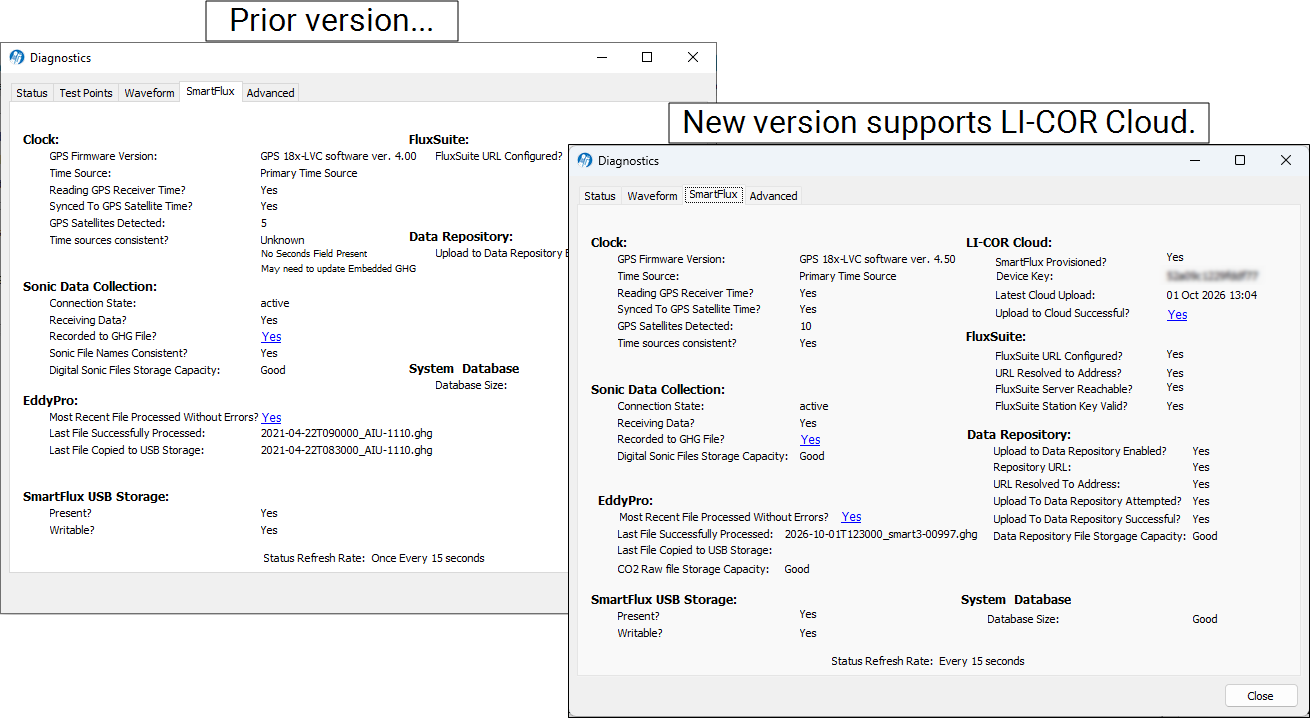
SmartFlux diagnostics now report the LI-COR Cloud connection status
The status of the LI-COR Cloud connection is indicated in the system diagnostics.
Updating to the SmartFlux Core System
Follow these steps if you are updating a SmartFlux 2 or 3 System to the SmartFlux Core System. Also update the win-GHG interface software to support the SmartFlux Core System and LI-COR Cloud.
Download the applications at the link below and install them on your computer.
SmartFlux Core Update
To upgrade to the SmartFlux Core System, get the SmartFlux Core System Updater v4.2.1 and win-GHG Interface Software v9.0.0. Any SmartFlux 2 or 3 System can be upgraded to the SmartFlux Core System with the v4.2.1 firmware and corresponding win-GHG v9.0.0 interface software. Both applications are available from the link below.
Installing the win-GHG Windows interface software
To install the Windows interface software for the LI‑7500A/RS, LI‑7200/RS, and LI‑7500DS gas analyzers:
-
Get the latest updater from the link above.
-
Double-click the downloaded file to start the installation wizard.
The updater is named something similar to win-GHG-9.0.0.

-
Follow the steps to install the program.
The software includes WinSCP for file transfer. Be sure to install all components. This application is used to configure the LI‑7500A/RS, LI‑7200/RS, and LI‑7500DS gas analyzers.
The new software has the same basic interactions and workflows as the previous version.
Updating the SmartFlux Core System firmware
To update the SmartFlux Core System embedded firmware:
-
Get the latest updater and install it on your computer.
Double-click the downloaded file to start the installation wizard.

The file is named smartflux-updater-4.2.1.exe. The installed application is called smartflux-updater.
-
Connect the system to your computer with a network cable.
You can use the cable to connect the SmartFlux Core System directly to your computer or network, or you can connect to the eddy covariance system network switch.
-
Launch the updater, select the unit to update, and then click Update Software....

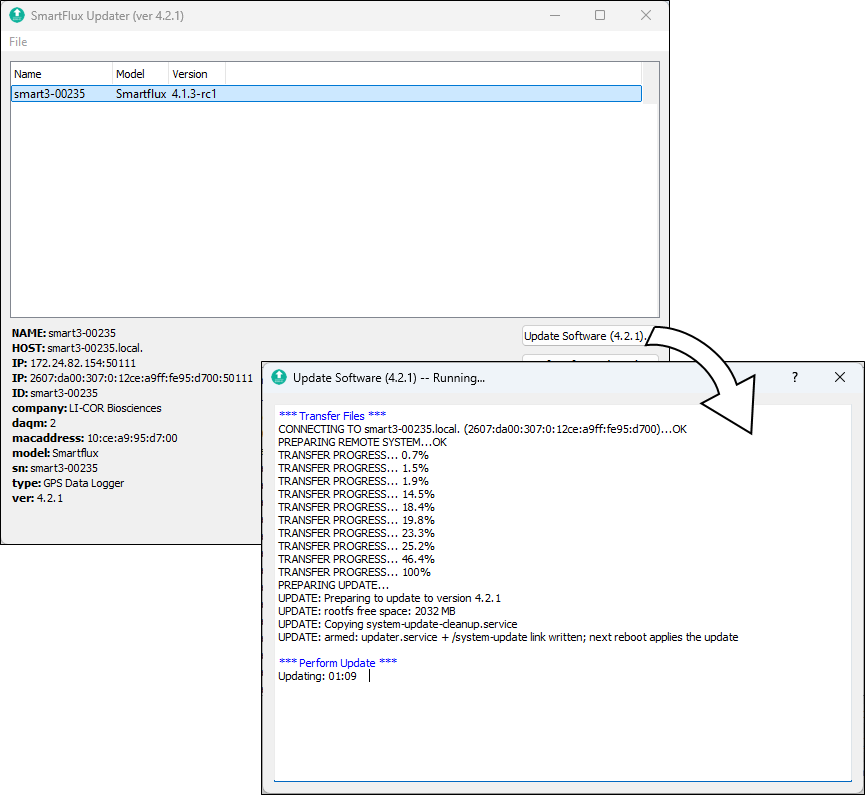
The update will take several minutes to finish. The application will notify you when it is done. Do not turn off the SmartFlux Core System or the computer while the update is in progress.
Note: Serial numbers are not changed by the update. Although the distinction between SmartFlux 2 and 3 Systems is no longer relevant with updated systems, serial numbers will remain intact. For example, a serial number smart3-0235 will not be changed by the update even though the system is now configured as a SmartFlux Core System.
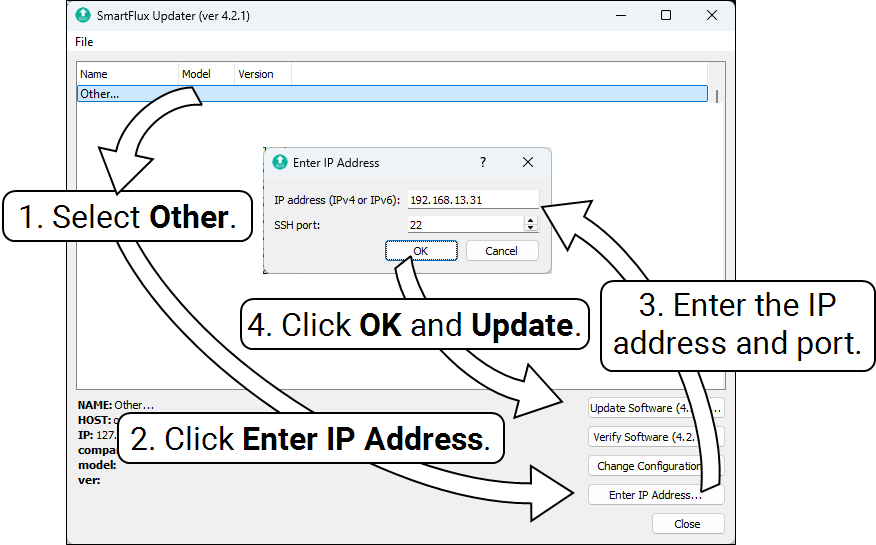
If the SmartFlux 2 or 3 System is on a different local network (for example, it is connected to an RV50X cellular radio), open the updater, click Other..., and then click Enter IP Address. Enter both the IP address of the radio and the port number for the SmartFlux 2 or 3 System. Click OK and then click Update Software.
After updating the SmartFlux 2 or 3 System with the SmartFlux Core Firmware v4.2.1 and installing the win-GHG interface software v9.0.0 on your computer, you are ready to configure a data plan and connect the eddy covariance system to LI-COR Cloud.
Connecting the system to LI-COR Cloud
While your computer is connected to the system, follow these steps.
-
In the win-GHG application, go to SmartFlux > LI-COR Cloud/Flux Suite.
-
If you are configuring a new system, it should already be provisioned and display a device key.
-
If you do not see the device key, click the Provision SmartFlux button (internet access required). Wait a moment for the interface to get and present the key.
-
-
Click the button to Copy Device Key to Clipboard.
Save the key as text on your computer and record the serial number of the SmartFlux Core System. The serial number is printed on the label. Later, you'll enter the device key and serial number to register the device on LI-COR Cloud.
-
Log into LI-COR Cloud (www.licor.cloud); create a new account if needed.
-
Under Devices, click Register Device.
-
Follow the steps at Registering LI-COR eddy covariance Systems.
-
Verify the settings in the win-GHG software and check to be sure that data logging has restarted.
Click Start if needed.
Now, the system is registered and will begin uploading new data as it becomes available.